Figma is an excellent place to explore an email visually. Its AI tools can generate design directions, refine content, edit images, and help teams iterate on the canvas. The difficult part comes next: turning that frame into an editable email that behaves well on mobile, works in real inboxes, and can move into an email service provider without a full rebuild.
The five workflows below solve that handoff in different ways. Migma ranks first for the most direct path from a brief or finished Figma frame to an editable production email. Email Love ranks second for teams that want an AI agent to keep building with their approved components inside Figma.
This ranking prioritizes the path to an editable email, the role AI plays, the preparation required in Figma, review controls, and the final handoff. It is based on official product documentation reviewed on August 31, 2026, not a timed benchmark or a claim that one tool produces better creative work in every case.
The best Figma-to-email AI workflows at a glance
| Rank | Workflow | Best for | Important constraint |
|---|---|---|---|
| 1 | Migma | Converting a brief or existing Figma frame into an editable email, then refining and exporting it | The Figma frame must be viewable, and the converted result still needs review |
| 2 | Email Love | Building export-ready campaigns from a reusable design system while Figma remains the team workspace | The agent and plugin depend on Email Love component structure |
| 3 | Kombai for Email | Turning a finished, relatively free-form Figma design into email HTML | The output is a conversion, so code and inbox behavior still need validation |
| 4 | Emailify | Creating repeatable emails from an opinionated component system inside Figma | Existing arbitrary Figma designs must be rebuilt with Emailify components |
| 5 | Postcards | Moving a Figma design into a visual email builder for AI refinement and ESP export | Auto Layout determines editability, and unsupported groups may become images |
Prepare the Figma frame before using AI
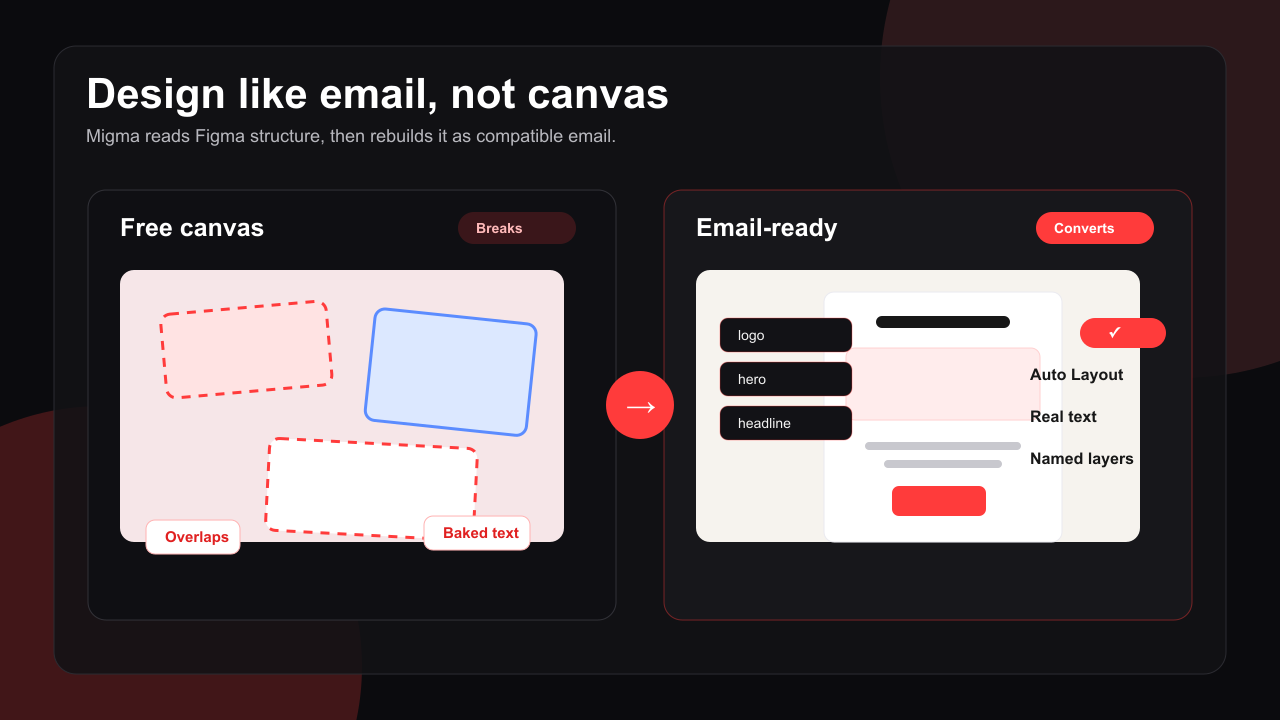
The converter cannot infer every design decision. A cleaner frame gives every workflow a better starting point.
- Use one main frame, usually around 600 pixels wide, with vertical Auto Layout.
- Keep headlines, body copy, and button labels as live text.
- Build buttons as real components instead of flattening them into images.
- Name major layers by purpose, such as
hero,headline,product-grid, andfooter. - Decide how columns should stack on a narrow screen.
- Export source images at sufficient resolution and prepare useful alt text.
- Include the subject line, preheader, CTA destination, and required footer details in the brief.
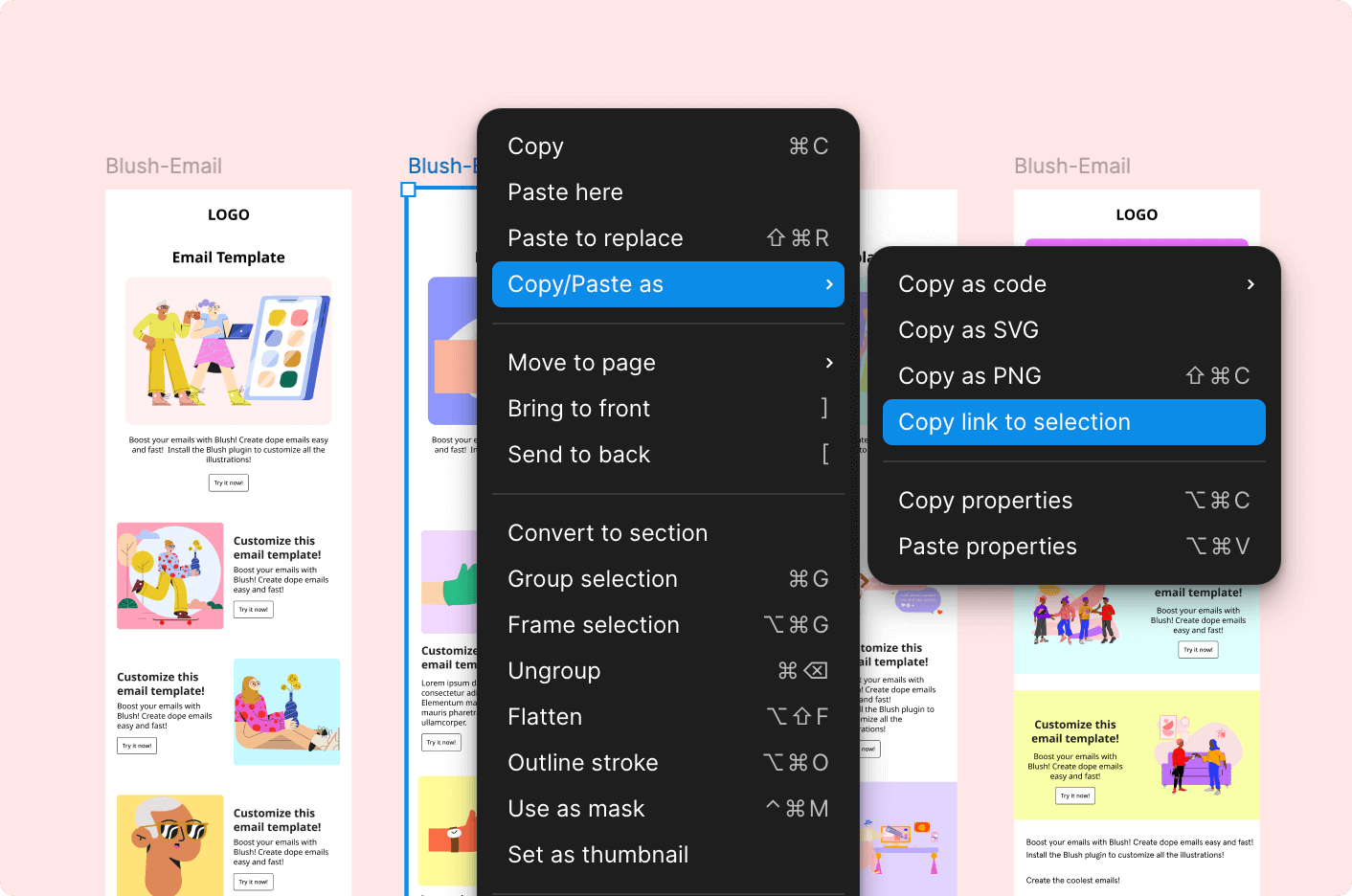
A practical brief can be simple:
Build a 600-pixel-wide product launch email for returning customers. Use one hero, three benefit blocks, one primary CTA, and a compact footer. Keep text editable, stack columns on mobile, and leave missing images as placeholders for review.
1. Migma: the best end-to-end Figma-to-email workflow
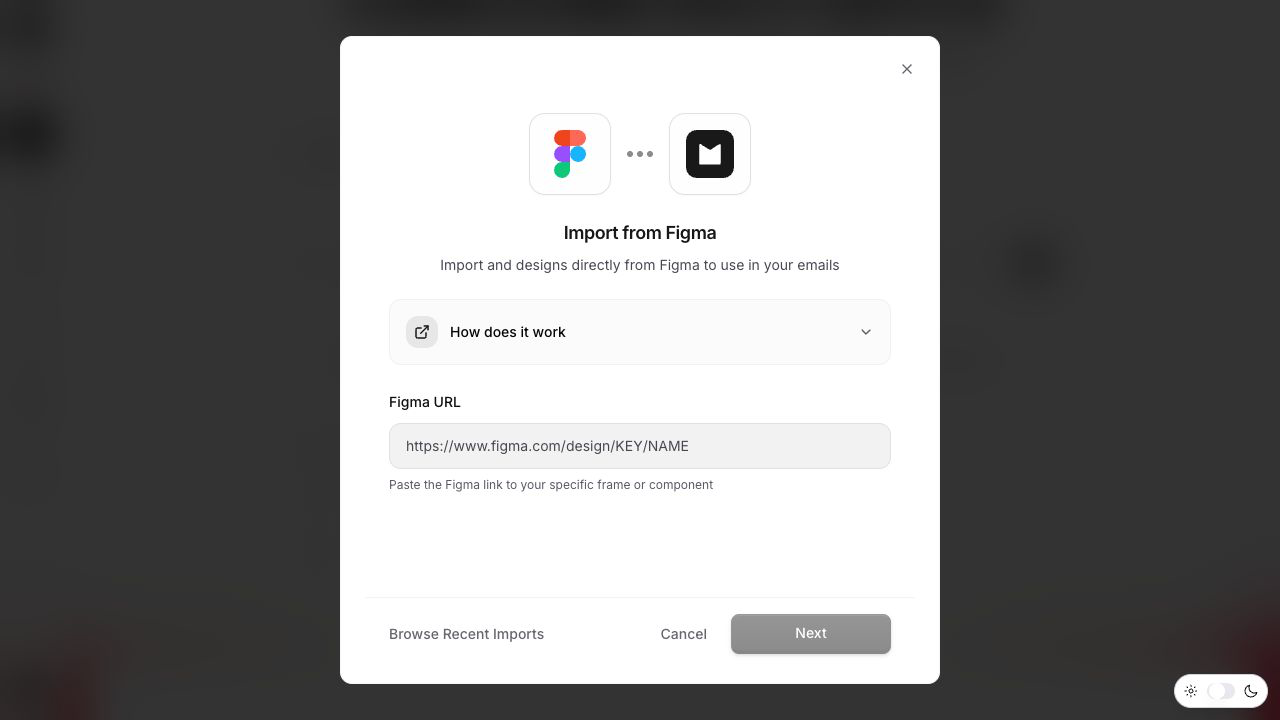
Migma’s Figma import starts with a shared Figma file or frame URL. The AI reads the design structure and converts it into an editable email, with HTML, React Email, and MJML among the documented output paths.
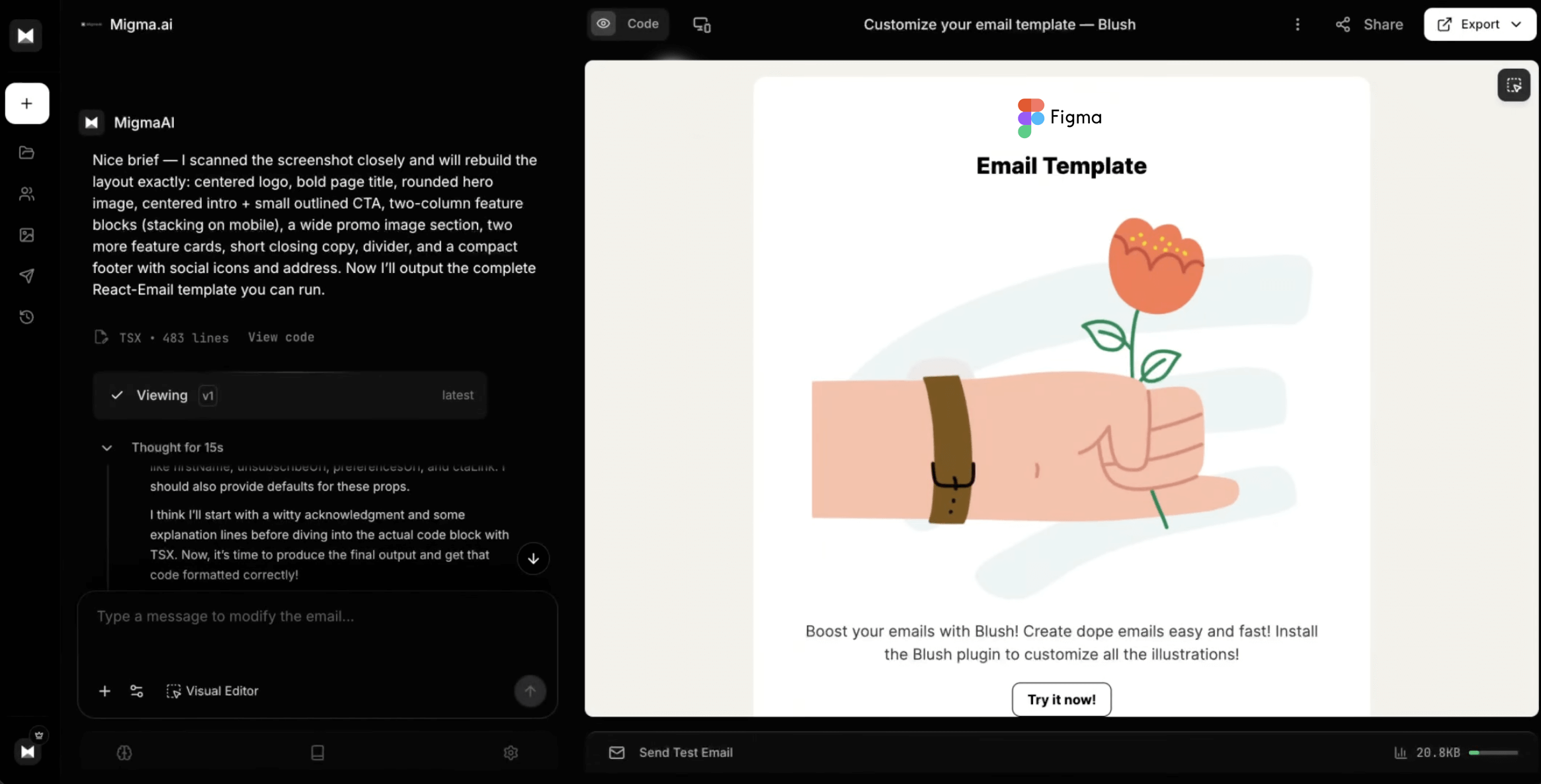
The important difference is what happens after conversion. The result opens as an email rather than a static preview. You can adjust copy, images, links, spacing, and sections in the Visual Editor, review desktop and mobile behavior, then move the finished work toward export or sending.
Choose Migma when:
- A designer has already approved the frame, but marketing needs an editable email.
- You want AI to handle both conversion and later changes.
- The team wants one production workspace after leaving Figma.
- You may need HTML, React Email, MJML, or another documented Migma handoff.
The tradeoff is that conversion still changes the medium. Complex effects, fonts, overlapping elements, and free-form canvas decisions may need email-safe alternatives. Review the result against the source frame instead of assuming that visual similarity proves correct inbox behavior.
2. Email Love: the best AI workflow that stays in Figma
Email Love’s agent workflow connects Claude or Codex to Figma through the official Figma MCP. The agent studies a synced Email Love design system, chooses approved components, and assembles an editable campaign directly on the canvas. The team then reviews it in Figma and exports through the Email Love plugin.
This is a strong choice for organizations that already treat Figma as the source of truth. Designers can maintain headers, heroes, content blocks, CTAs, and footers as reusable components while an agent handles first-pass assembly from a campaign brief.
Email Love also documents HTML and MJML output, ESP exports, responsive previews, dark-mode review, fallback-font checks, and a structural preflight. Its template workflow emphasizes preserving the internal component hierarchy so live text, buttons, images, and responsive columns survive export.
Choose Email Love when:
- You already have, or want to create, a reusable email design system in Figma.
- Designers need to keep editing and commenting on the final campaign frame.
- You want an agent to compose campaigns from approved components rather than invent a new layout system each time.
The setup is more structured than a simple converter. The agent needs write-capable Figma access, the appropriate seat and permissions, and a valid Email Love component system. That investment makes the most sense when the components will be reused across many campaigns.
3. Kombai for Email: best for a finished free-form design
Kombai for Email uses generative models to interpret a Figma design and produce email HTML. Its official material says the workflow does not require predefined components, special layer tags, or Auto Layout before conversion.
That makes Kombai useful when the design already exists and rebuilding it inside a dedicated component library would create extra work. The documented workflow includes responsive behavior, table-based email structure, font and alt-text controls, test sends, and export options.
Choose Kombai when the source frame is the main artifact and the next owner wants code. The main review question is not whether the browser preview looks close. It is whether live text, links, images, fallbacks, responsive behavior, and the target ESP survive the handoff.
4. Emailify: best for an opinionated Figma component system
Emailify is a Figma plugin built around email-specific components. Its AI Designer can turn a campaign brief into an editable email using approved components already in the file. Teams can then refine the result with normal Figma controls, preview breakpoints, and export responsive HTML.
The constraint is deliberate. Emailify’s design fundamentals say that arbitrary Figma email designs created outside the plugin are not converted automatically. Existing designs need to be rebuilt with Emailify’s mapped layers and components.
Choose Emailify when predictable structure matters more than accepting any source frame. It is especially practical for teams that want reusable Figma components, responsive overrides, localization workflows, and controlled HTML output from the same file.
5. Postcards: best for moving from Figma into a visual builder
The Postcards Figma plugin analyzes the selected frame and transfers the design into the Postcards email builder. Auto Layout groups can become editable grid structures. Groups without Auto Layout, or elements using unsupported effects, may be flattened into images.
After the handoff, Postcards provides a drag-and-drop email editor. Its AI Suite can generate, rewrite, translate, and restyle the template, while the builder handles previews and ESP exports.
Choose Postcards when Figma is the starting point but not the final editing environment. It works best when the team is comfortable finishing the campaign in a separate visual builder and has prepared the Figma hierarchy for a cleaner transfer.
What every workflow still needs
AI can reduce the implementation work, but it does not remove the final email review.
Before approving an export, check:
- The copy, prices, dates, and claims match the approved brief.
- Headlines, paragraphs, and buttons remain live and selectable where expected.
- Images have useful alt text and reliable public URLs.
- Every CTA, text link, unsubscribe link, and merge tag points to the right destination.
- Columns stack in the intended order on mobile.
- Fallback fonts, dark mode, and image crops remain readable.
- The final HTML is tested in the inboxes and sending platform that matter to your audience.
Which option should you choose?
Start with the artifact you already have and the artifact your next owner needs.
- Choose Migma for the shortest documented path from a Figma URL or brief to an editable production email.
- Choose Email Love when an AI agent should build with your component system and the campaign must remain editable in Figma.
- Choose Kombai when a free-form finished frame needs a code-first conversion.
- Choose Emailify when you want a strict, reusable email component system inside Figma.
- Choose Postcards when the team wants to transfer the design into a separate AI-assisted visual builder.
If your design is ready, open Migma and import the Figma frame. Keep the source nearby, review the converted email at desktop and mobile widths, and send a real test before the campaign leaves your team.
Frequently Asked Questions
How should you prepare a Figma frame before AI email conversion?
To get a clean conversion:
- Use one main frame (typically around 600 pixels wide) with vertical Auto Layout.
- Keep headlines, body copy, and button labels as live text instead of flattened images.
- Build buttons as real components and name major layers by purpose (e.g.,
hero,product-grid,footer). - Plan mobile column stacking and prepare high-resolution images with alt text.
What export formats does Migma support for converted Figma designs?
Migma’s Figma import converts shared Figma frames into editable emails with documented export paths for HTML, React Email, and MJML. Converted designs can also be edited directly in the Visual Editor before exporting.
How does the Email Love AI agent workflow work in Figma?
Email Love connects AI models like Claude or Codex to Figma via the official Figma MCP. The agent reads a synced Email Love design system, selects approved components, and automatically assembles editable campaign layouts directly on the Figma canvas.
Can Kombai for Email convert designs that do not use Auto Layout?
Yes. Kombai for Email uses generative models to produce table-based email HTML from relatively free-form Figma designs without requiring Auto Layout, predefined components, or special layer tags beforehand.
What should you check before exporting an AI-generated email to an ESP?
Before exporting, verify that:
- Copy, dates, links, CTA destinations, and merge tags match the brief.
- Headlines, paragraphs, and buttons remain live text.
- Images have valid URLs and descriptive alt text.
- Responsive column stacking, fallback fonts, and dark mode display properly across target inboxes.