Writing the first draft of an email is often the fast part. The slower work starts when the structure is right but the details are not: a headline needs a better break, the image crop feels off, the CTA is too wide, or one section needs more breathing room.
Migma’s Visual Editor is built for that stage. Open one email, choose Visual Editor, and the design becomes a clickable canvas. You can change the text, images, buttons, links, spacing, and sections where you see them without opening the HTML.
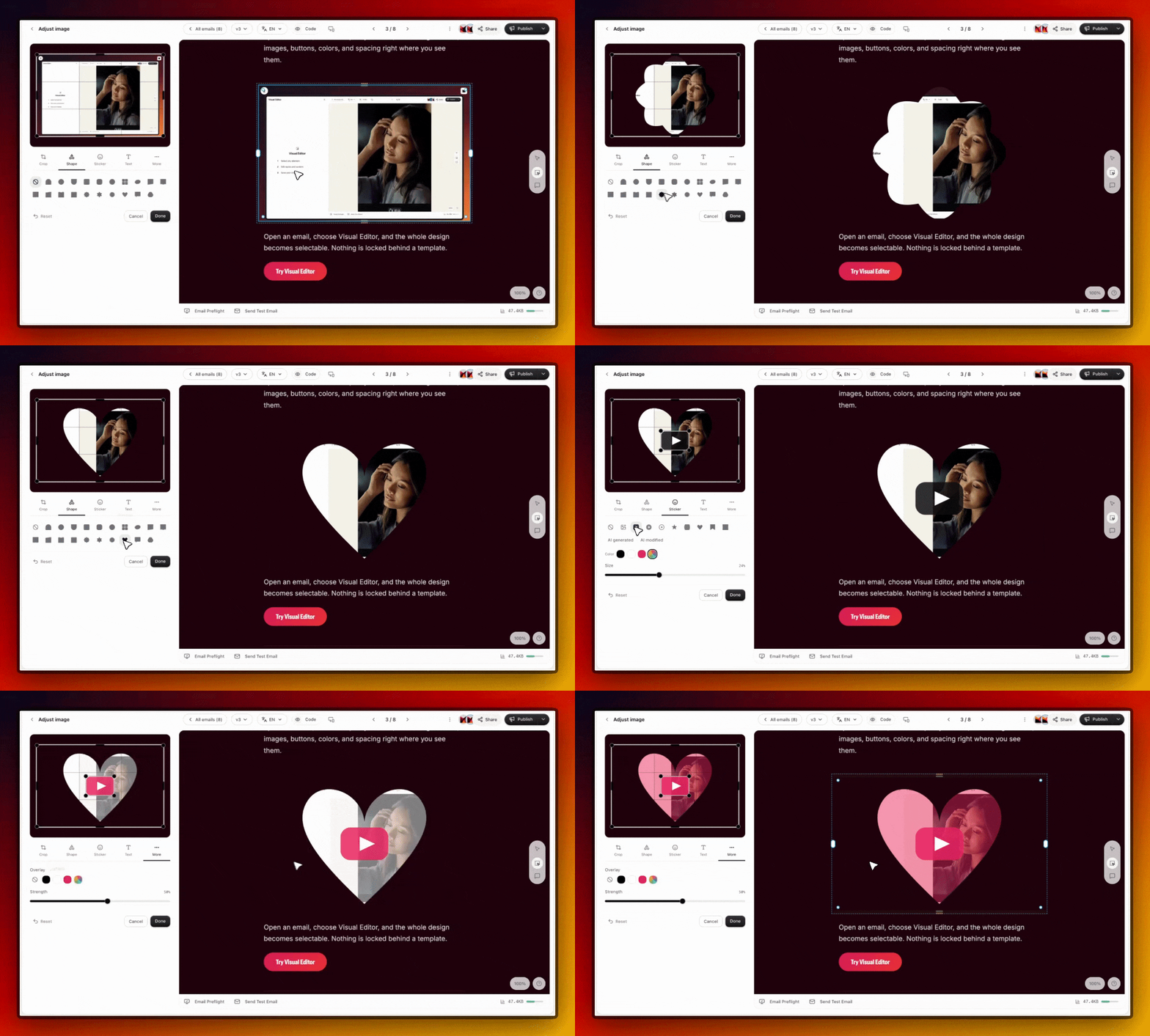
This is not a replacement for the initial brief or for broad design changes. It is the precise layer between “the draft is close” and “this is ready to review.” Here is how to use it.
Start with the element you want to change
Select a heading, paragraph, image, button, or section directly in the email preview. The relevant controls appear beside the canvas, so you can focus on one decision at a time instead of searching through a block library or code panel.
For parts that are difficult to select, such as a spacer, divider, nested column, or overlapping section, open Layers. Every part of the email is listed by name. Select an item to jump to it, then move it, duplicate it, save it, or remove it.
That makes the editor useful for two different kinds of work:
- Fast polish, such as fixing a headline or changing a button link.
- Structural cleanup, such as reordering sections or removing an unnecessary spacer.
Rewrite and restyle text in place
Click a heading or paragraph and type directly into the email. You can then adjust the font, size, weight, color, alignment, background, corners, and spacing for that selection.
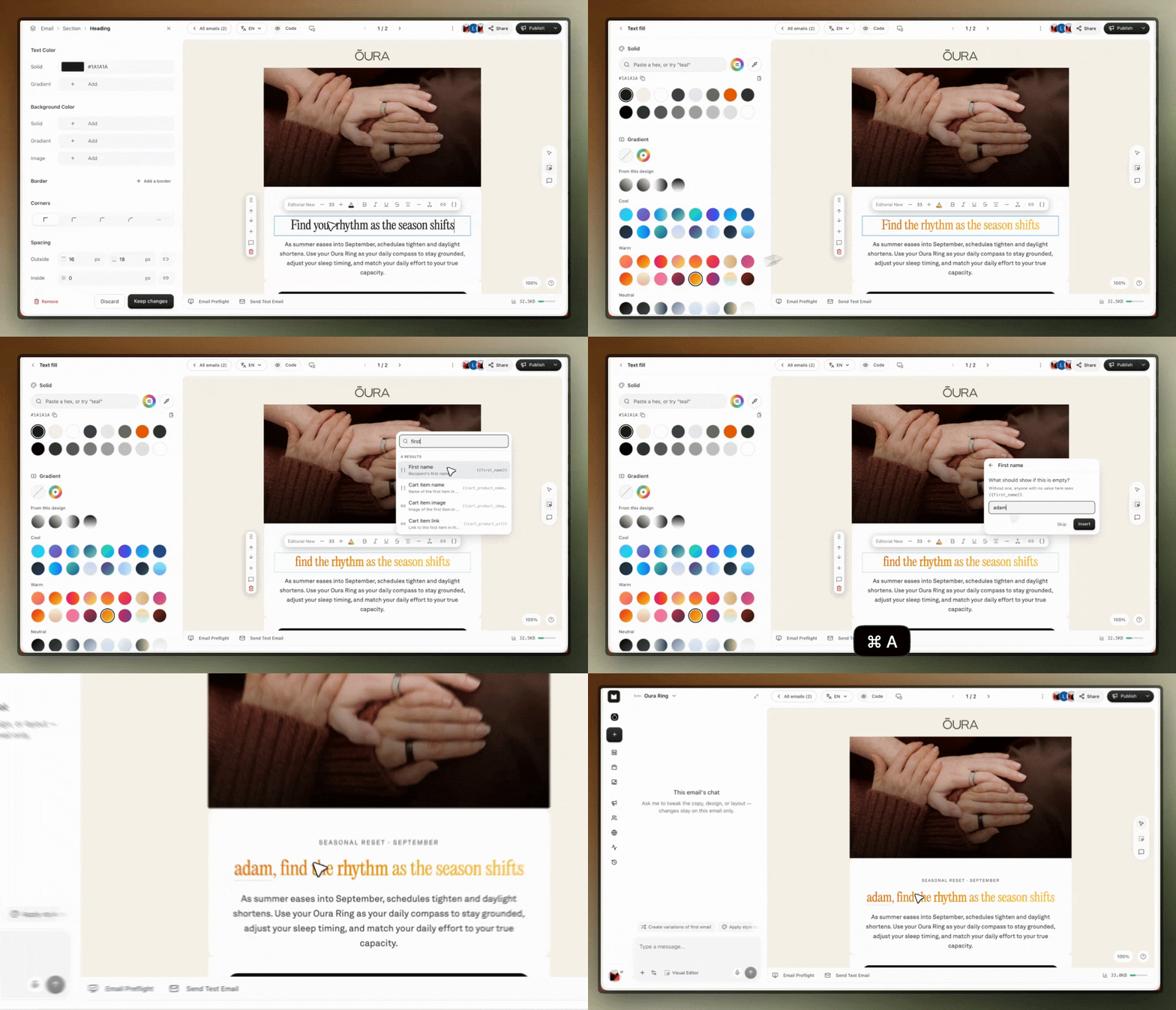
This is especially useful after an AI-generated first draft. The overall email can stay intact while you tighten one headline, shorten a paragraph, or make the visual hierarchy clearer. You do not need to regenerate the complete design just to fix one line.
A practical sequence is to review the email from top to bottom, editing the subject-facing copy first: headline, supporting text, CTA label, and any legal or fallback text. Then make the visual adjustments. Separating copy decisions from visual decisions keeps the review focused.
Swap, crop, and clean up images
Select an image to change its source, crop, shape, background, alt text, or destination link. You can upload, drag, or paste a file, or choose an existing image from your library.
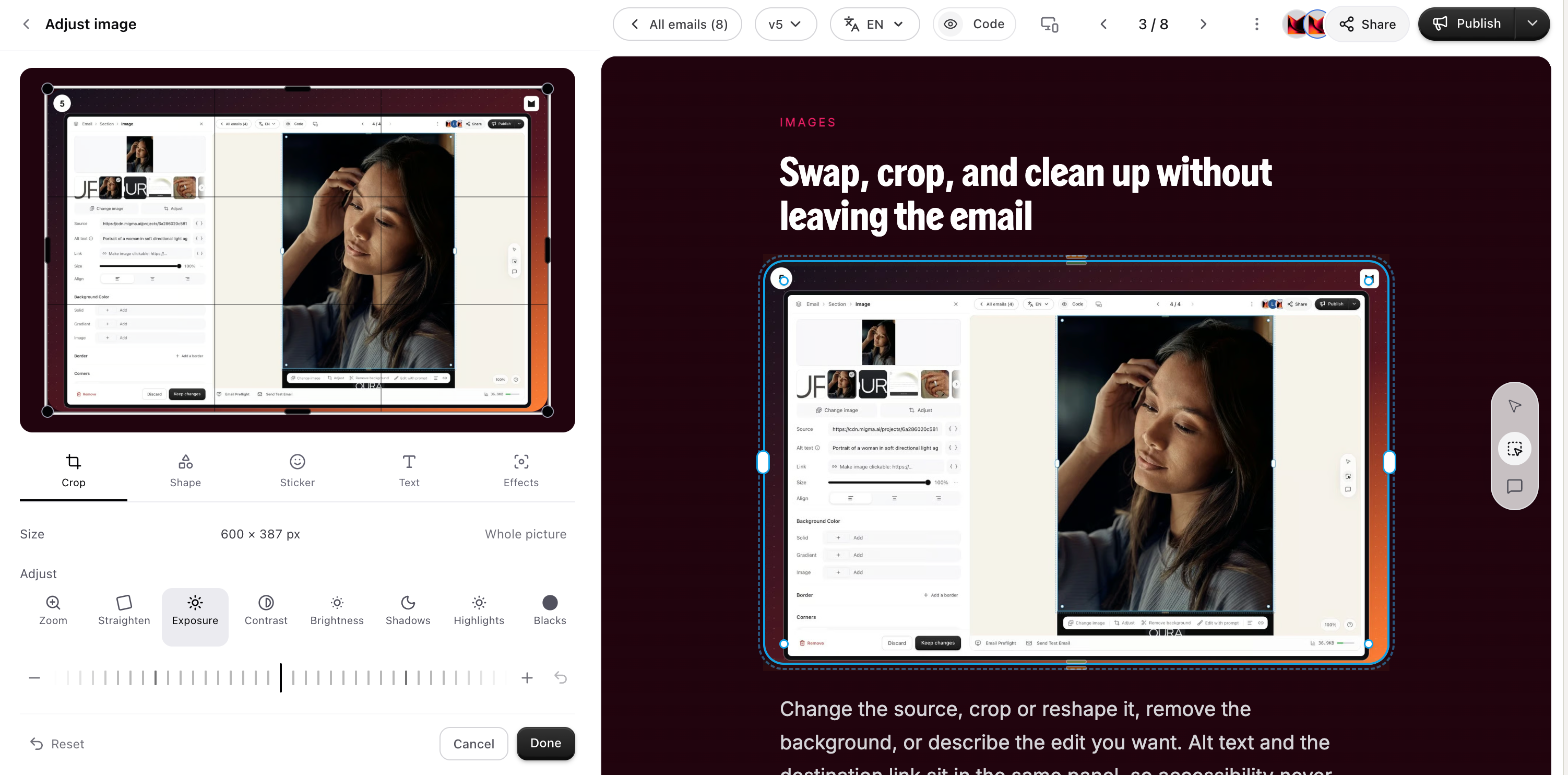
The image adjustment controls let you crop and reposition the asset without leaving the email. You can also remove a background or describe a focused image edit. Keeping the alt text and link in the same panel makes it easier to finish the functional details while the image is selected.
Before keeping the change, check the crop at desktop and mobile width. A portrait that looks balanced on a wide layout can feel too tight on a phone, and text placed inside an image may become difficult to read.
Mark the exact area you mean
Some feedback is easier to show than to describe. With Migma’s highlight and mask tools, you can mark a block or draw over part of an image, then type the change you want. The instruction stays attached to the area you selected, so the rest of the email remains untouched.
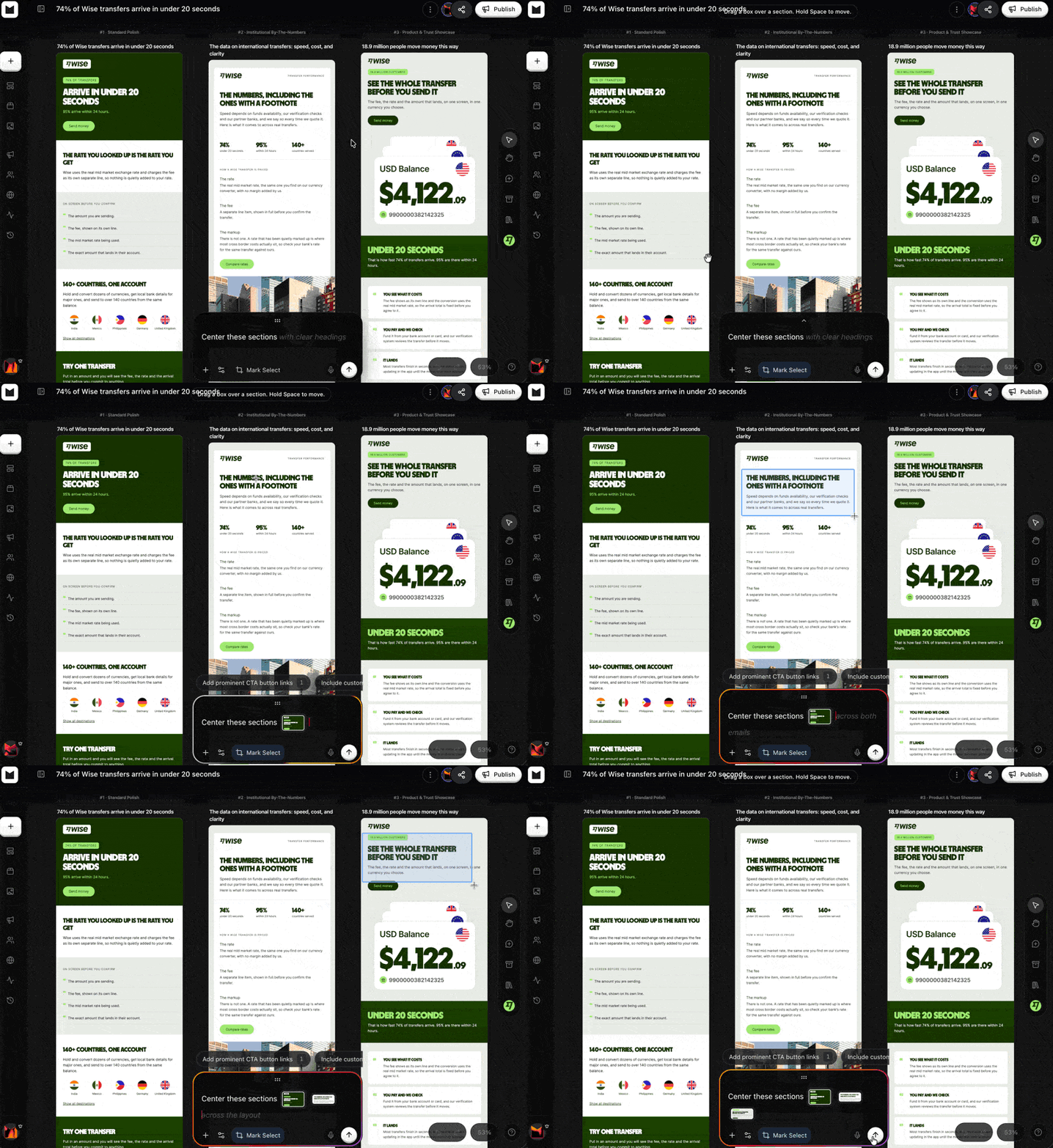
Use a full-section highlight when the request applies to a complete block. Use a smaller mask when you want to change one detail, such as removing an object, covering sensitive information, or drawing attention to part of a screenshot.
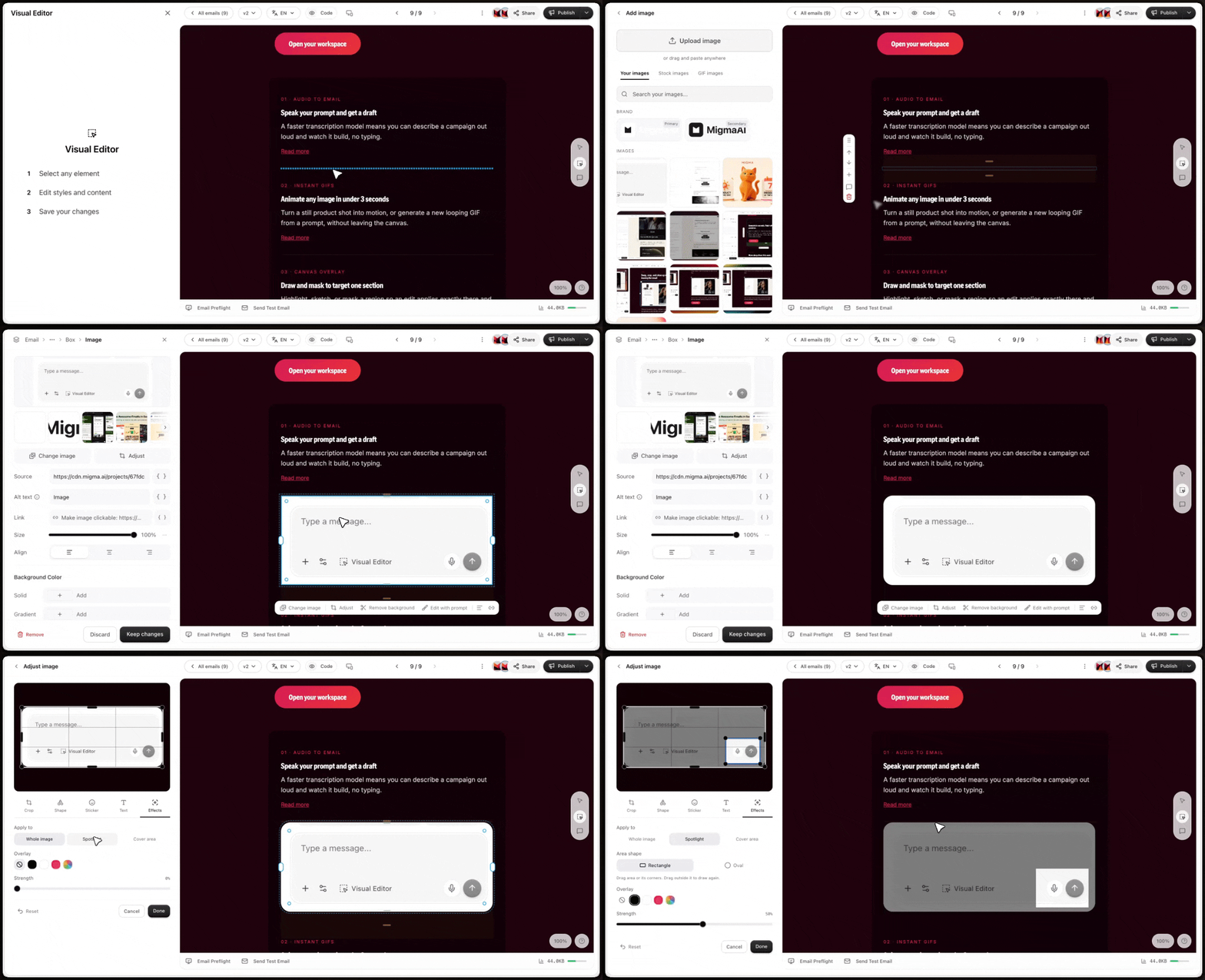
This is a useful review habit for teams: point to the element, state the intended result, and keep the scope narrow. It reduces the ambiguity of comments like “make this area better” and makes it easier to check whether the requested change was completed.
Use Layers when the canvas is crowded
Complex emails often contain nested sections, columns, spacers, and dividers that are hard to click precisely. The Layers panel gives you a structured list of every element in the email.
Select a layer to jump to the corresponding element on the canvas. From there, you can move, duplicate, save, comment on, or remove it. Layers are also the safest way to confirm that you are changing the parent section rather than one nested text or image element.
A practical draft-to-finish workflow
The Visual Editor works best as the second half of a simple production flow:
- Start with a short brief and generate or import the email.
- Open the strongest draft and choose Visual Editor.
- Fix the headline, supporting copy, and CTA.
- Replace or crop the images and add useful alt text.
- Use highlights or masks for changes that are easier to point at.
- Open Layers to review the structure and hard-to-click elements.
- Check the phone preview for type size, crop, button width, spacing, and reading order.
- Keep the changes, then run Email Preflight and send yourself a test.
The result is a faster path from a good first draft to an email that is ready for approval without rebuilding the design or switching to code for every small correction.
For the complete control-by-control walkthrough, read the Visual Editor guide. When you are ready to try the workflow, open Migma and create an email.
Frequently asked questions
What is Migma's Visual Editor?
Migma’s Visual Editor converts an email design into a clickable canvas. It allows you to adjust text, images, buttons, links, spacing, and layout sections directly on the preview without needing to open or edit HTML.
How do you edit and restyle email text in Migma?
Click directly on any heading or paragraph to rewrite the copy in place. Beside the canvas, you can adjust visual properties such as font, text size, font weight, color, alignment, background, corner radius, and spacing without regenerating the entire design.
How do image adjustments work in the Visual Editor?
Selecting an image lets you upload, drag, paste, or select an asset from your library. You can crop and reposition images, remove backgrounds, adjust shapes, and manage functional details like alt text and destination links in the same panel.
What are Migma's highlight and mask tools used for?
Highlight and mask tools allow you to pinpoint specific areas by selecting a full block or drawing over part of an image. You can attach typed feedback or edit requests directly to the marked area, keeping the scope narrow and leaving the rest of the email untouched.
When should you use the Layers panel in Migma?
The Layers panel is useful when dealing with crowded or nested layouts that are difficult to click, such as spacers, dividers, and columns. It provides a structured list of every element by name, allowing you to select, move, duplicate, save, comment on, or remove specific components.