Build and Preview Emails Visually Before You Send

Stop re-prompting AI for small email fixes. Click any headline, button, or image to edit it, then test across 40+ inboxes before you send. Try Migma.

Written by

Yara Jallad

Published

Last updated

Build and Preview Emails Visually Before You Send
Quick Summary:
> AI nails the first draft, then burns your time on small fixes, one prompt at a time. The final round needs precision, not regeneration. With Migma's Visual Editor, you click any headline, button, or image and change it in place, then test every inbox before you send. Keep reading to see what you can control, when to prompt versus edit by hand, and the checks that stop broken layouts from shipping.

A visual email editor lets you change an email by clicking on it. You select a headline, button, or image in the live preview and edit it in place, with no prompt and no HTML. Migma's Visual Editor adds that layer on top of AI generation, so you get a fast first draft and designer-level control over the final version.

That matters because the first draft is rarely the slow part. The slow part is the last round of small fixes. A headline breaks in the wrong place. A button looks too wide on mobile. An image crop cuts off the product. Asking an AI to redo each of those, one prompt at a time, wastes the speed you gained at the start.

This guide explains what the Visual Editor does, how it compares with prompting and code, what you can control, and how to preview and test the email before it reaches a single inbox.

TL;DR

FeatureWhat it means for you
Instant editsChange text, sizes, and styling directly on the email preview.
No prompt neededAdjust any element without going back to the chat.
Full design controlFine-tune fonts, margins, and padding down to each individual side.
Image and GIF toolsUpload a file, paste a URL, or generate images and GIFs with AI.
Preview and testCheck the email across inboxes and devices before it goes out.
Edit Visually with Migma

What Is a Visual Email Editor?

A visual email editor turns the email preview into an editable canvas. What you click is what you change. Interface researchers call this direct manipulation, where you act on the object itself instead of describing it in words.

Most email builders give you one of three ways to make a change. Each suits a different moment in production.

Editing modeHow you make a changeBest forMain drawback
Prompt-based (AI chat)You describe the change and the AI regenerates it.First drafts, big layout shifts, and new sections.Small fixes can take several attempts.
Code-based (HTML)You edit the markup and CSS by hand.Developers who need full control.Slow, and easy to break rendering in some inboxes.
Visual (click to edit)You select the element on the preview and adjust it.Final polish, copy tweaks, spacing, and image swaps.Not designed to build a whole email from nothing.

Migma combines the first and third modes in one workspace. You generate the email with AI, then switch to the Visual Editor once the structure is right and only the details need work. Developers who want programmatic control can still use the Migma API alongside it.

If you are still comparing tools, our roundup of the best AI email builders for non-designers shows how different builders handle this split between AI generation and manual control.

Why Prompt-Only Editing Slows Down the Final Round

AI generation is quick at the big picture and slow at the fine details. Before the Visual Editor, every update in MigmaAI went through a follow-up prompt or a regenerated section. That worked for large changes. It was frustrating for small ones.

Here is where prompt-only editing tends to go wrong:

  • A request to make a button smaller can also change its color or position.
  • Regenerating a section can undo a headline you had already approved.
  • Describing an exact padding value in words is slower than typing the number.
  • Every extra round trip adds waiting time, and those minutes add up across a campaign.
  • Reviewers struggle to confirm that only the requested change was made.

One small fix, two ways

Take a common request. The hero button on a sale email looks too wide on mobile, and the team wants it narrower with a little more space above it. Here is how that fix plays out in each mode.

StepPrompt-only editingVisual Editor
1Type a request asking for a narrower button with more space above it.Click the button on the preview.
2Wait for the AI to regenerate the section.Lower the horizontal padding in the sidebar.
3Check whether the color, label, or headline changed as well.Raise the top margin on the same element.
4Write a follow-up prompt if the result is too narrow or too wide.Check the mobile preview and click "Save".

The visual route has fewer steps, and none of them touch the rest of the section. That predictability is what reviewers care about in the final hour before a send.

Once a line of copy is approved, it should stay approved. Our guide on how to stop AI from rewriting approved email copy covers this problem in depth. Visual editing solves the same problem from the other side, because you change one element and leave everything else untouched.

There is also a hidden cost. Many teams used to export an AI draft into a separate design tool just to fix spacing, then paste it back. Our article on the end of the email production bottleneck explains why that handoff slows down every campaign.

What You Can Change in Migma's Visual Editor

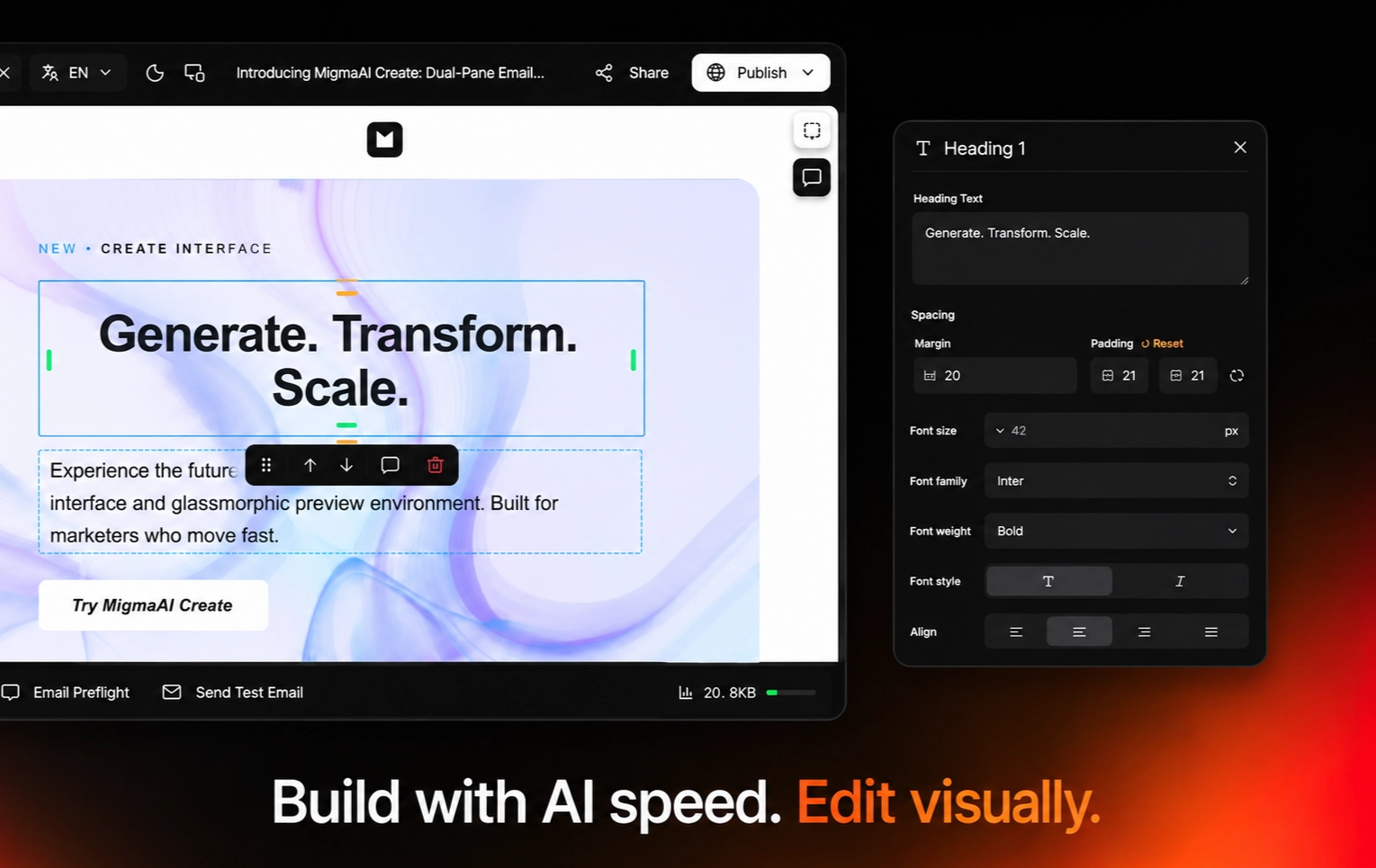
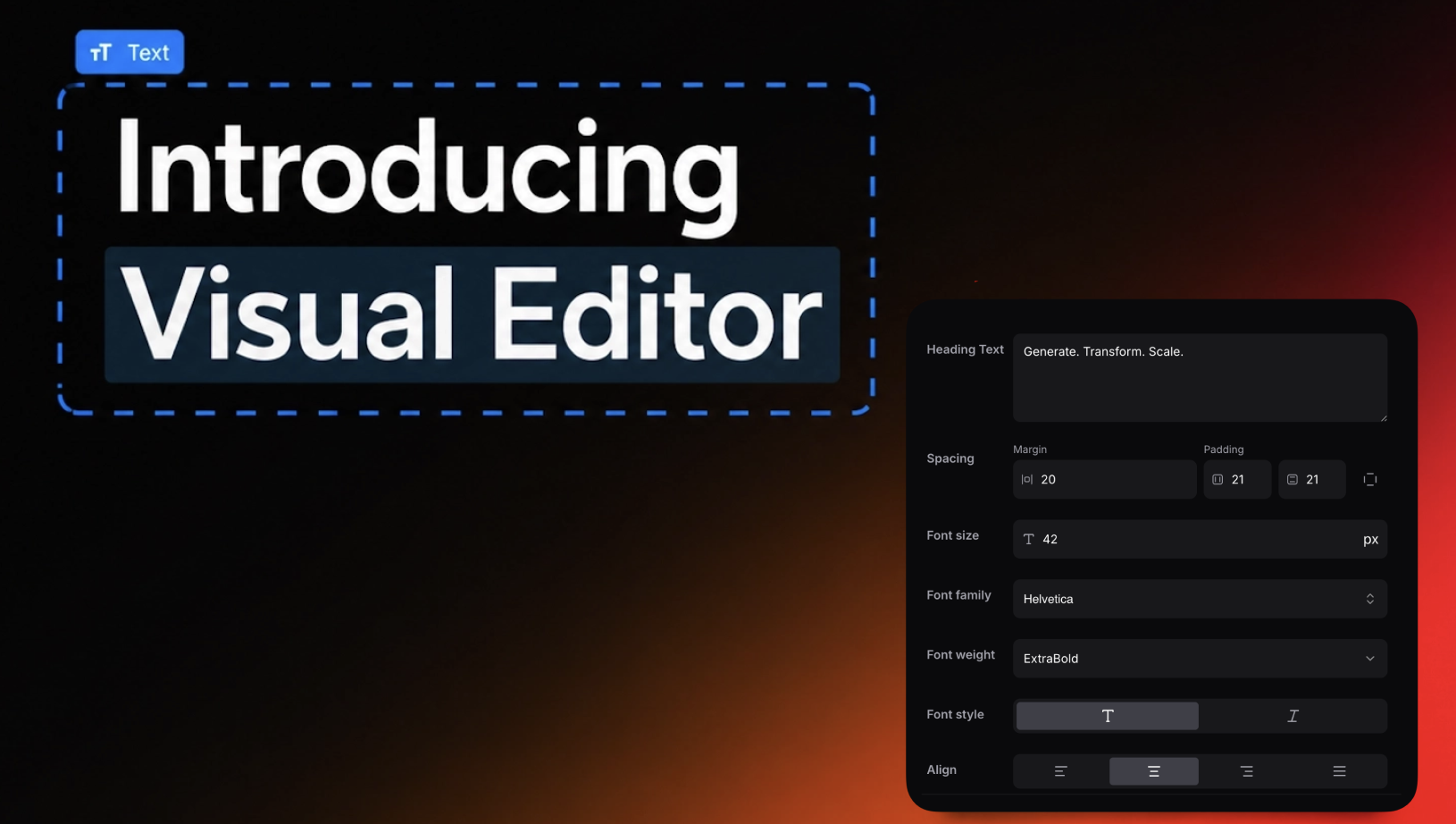
The Visual Editor covers text, layout, images, and motion. When you select an element, its controls appear in the sidebar beside the canvas, so you only see the options that apply to it.

ElementWhat you can adjustTypical use
Headings and paragraphsCopy, font, size, weight, color, spacing, and alignment.Tightening a headline or matching brand typography.
ButtonsLabel, link, padding, color, corners, and alignment.Resizing a CTA that looks too wide on mobile.
Spacing and layoutMargins, padding, alignment, and position, set per side.Giving a crowded section more breathing room.
ImagesUpload, paste a URL, crop, reposition, and set alt text and a link.Swapping a product shot or fixing a bad crop.
AI images and GIFsGenerate a new image or an animated GIF inside the editor.Adding motion to a launch or sale email.
Icons and visualsSwap and fine-tune icons and decorative elements.Keeping a set of icons on brand.
Any elementRemove it, duplicate it, or move it.Cutting a section you no longer need.

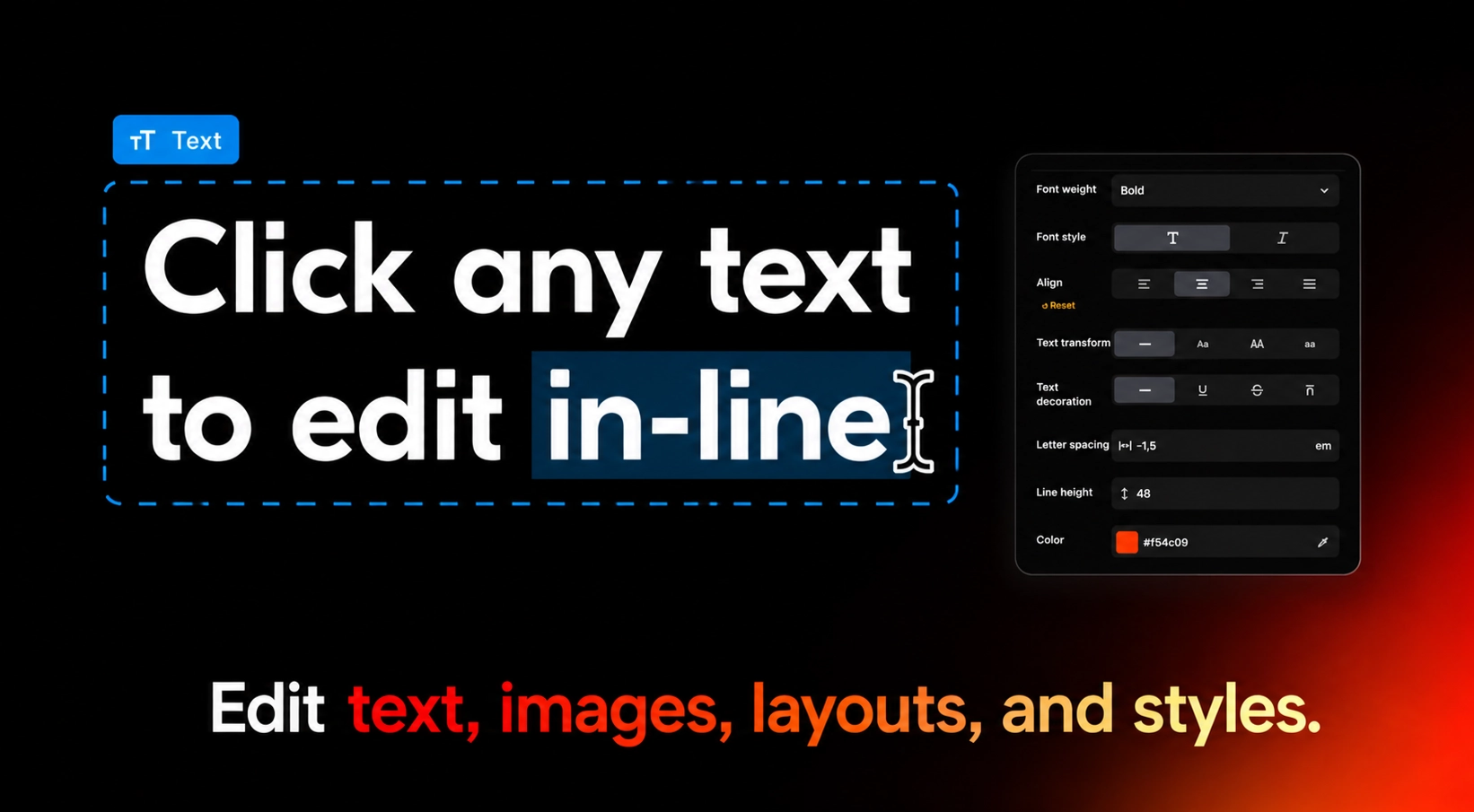
Typography controls

Font changes happen in real time. You can set the font, size, weight, spacing, and alignment and see the result straight away on the preview.

This matters most when brand fonts need to match across every campaign. If your brand rules already live in Migma, our guide to brand memory for AI email shows how to keep them consistent from the very first draft.

Spacing controls that feel like a design tool

The Visual Editor borrows the side panel from design tools like Figma. Select any element and set its margins and padding for the top, right, bottom, and left sides independently. You can nudge a single button or rework the spacing of an entire section.

Teams that design in Figma first can bring those files straight in through the Figma and Migma connection, then finish the details visually.

Image, GIF, and AI visual controls

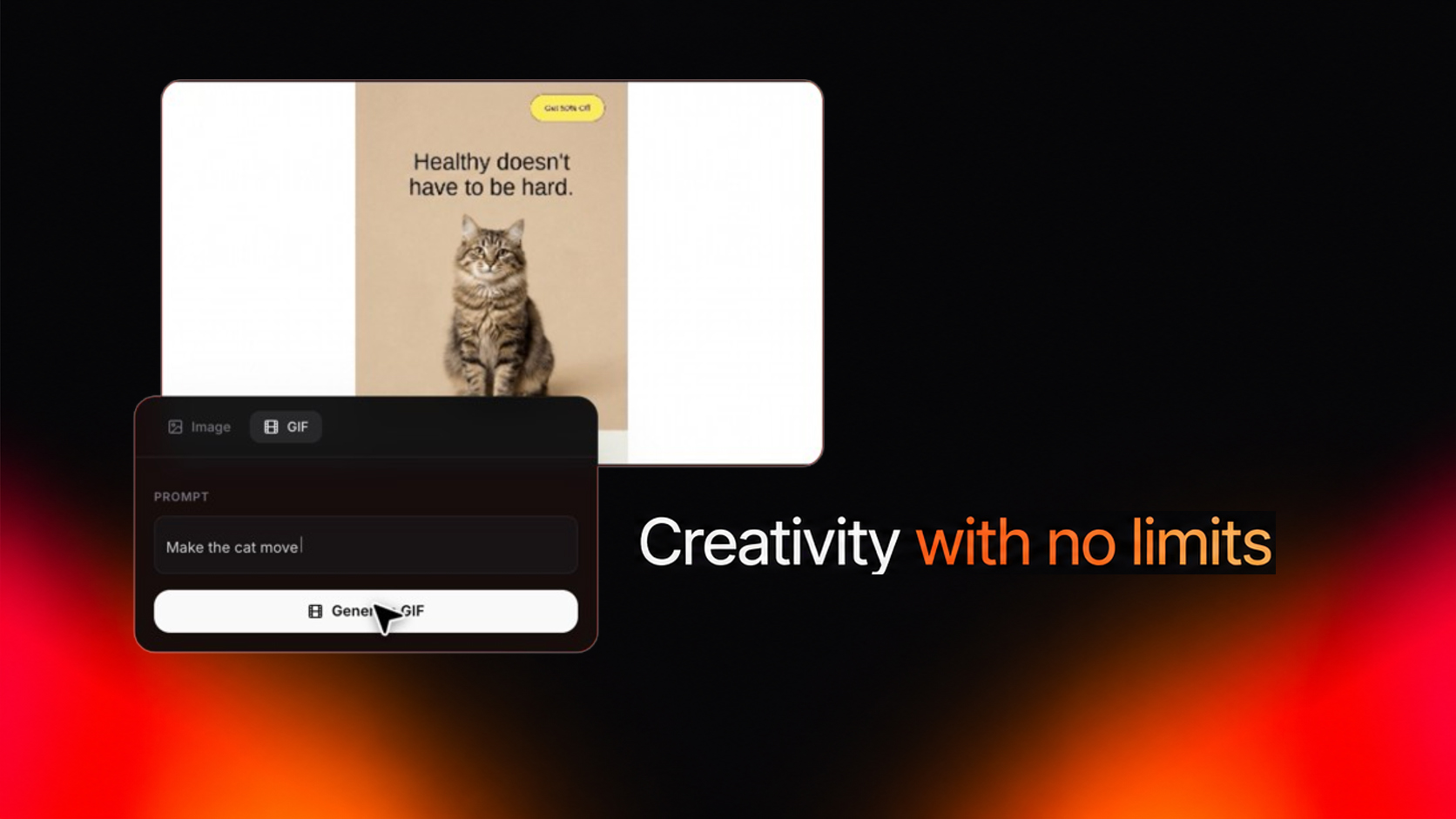
Click any image to upload a file, paste a URL, or generate a new one with MigmaAI. You can also create AI-generated GIFs without leaving the editor, which is useful for countdowns, product reveals, and seasonal campaigns.

For heavier image work, such as removing a background or merging several assets into one, see our guide to AI-powered image editing for email visuals.

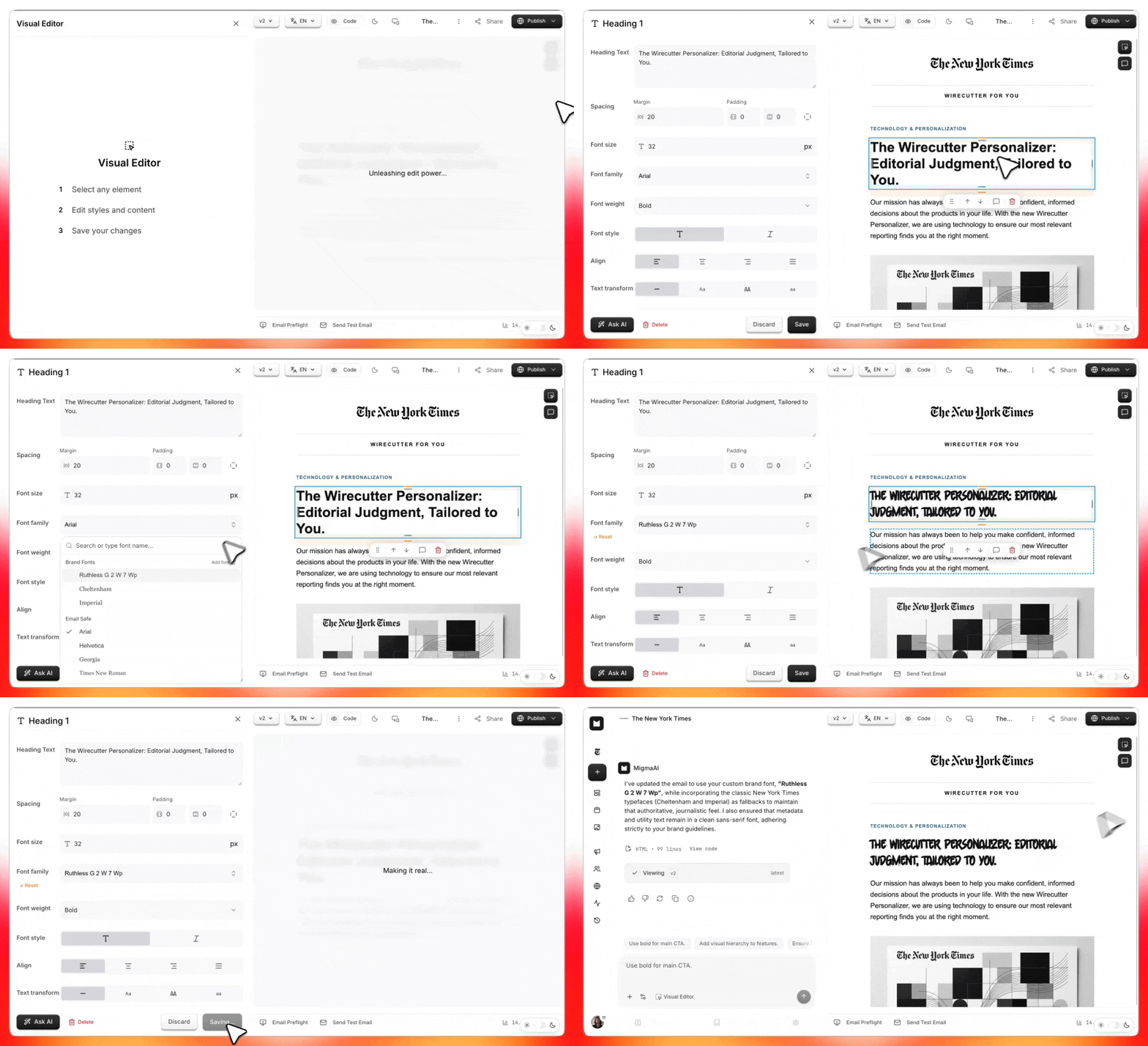
How to Use the Visual Editor in Four Steps

Turning on the Visual Editor takes one click. Here is the short version of the workflow.

  1. Click "Visual Editor" in the prompt box, or click "Enable Edit Mode" on the preview.
  1. Select the element you want to change, such as a button, headline, or image.
  1. Edit the text, adjust the styling in the sidebar, or remove the element entirely.
  1. Click "Save" when you are happy with the result.

Some parts of an email are hard to click, such as spacers, dividers, and nested columns. For those, open the Layers panel. It lists every element by name, so you can select, move, duplicate, or remove it without hunting around the canvas.

For a control-by-control walkthrough with screenshots, read how to edit any email visually in Migma. The Visual Editor documentation lists every setting in detail.

Visual Editor - Migma

Visual Editor vs. Visual Feedback: Which One to Use

Migma gives you two ways to change an email without re-prompting. The Visual Editor is for changes you make yourself. Visual Feedback is for changes you describe and let the AI apply.

QuestionVisual EditorVisual Feedback
Who makes the change?You, by hand.MigmaAI, based on your note.
How do you start?Select an element and adjust it in the sidebar.Click a section and describe the update in plain language.
Best forExact values like font size, padding, and crops.Rewrites, new angles, and layout ideas.
Batch changesOne element at a time.Leave notes across the email, then click "Apply All Feedback".
PrecisionExact, down to each side of an element.Depends on how clearly you describe the change.

Most teams use both. A sensible order looks like this:

  • Run a full review pass with Visual Feedback to fix copy and structure.
  • Switch to the Visual Editor to lock in exact sizes, spacing, and crops.
  • Use highlights and masks when you need to mark one precise area of a block or image.
Migma Edit Feature

Preview Before You Send: Test Every Inbox

An email that looks right in the editor can still break in a real inbox. Outlook, Gmail, and Apple Mail each handle CSS differently, and dark mode can invert colors or hide a logo. Checking before you send is the only reliable way to catch these problems.

Migma keeps that check in the same workspace as the Visual Editor. You fix, preview, and test without exporting anything.

CheckWhat it catchesWhere to run it in Migma
Client compatibility testLayout breaks across more than 40 email clients and devices.Click "Test Compatibility" after building the email.
Brand Voice GuardTone and word choices that drift from your brand.Email Preflight.
Link ValidatorDead links, 404 pages, and slow redirect chains.Email Preflight.
Accessibility and grammarMissing alt text, contrast issues, and typos.Email Preflight quick fixes.
Dark mode reviewInverted colors, washed-out logos, and unreadable text.Compatibility previews plus a manual check.

The loop is simple. Run the compatibility test, spot a broken layout, and fix it directly in the Visual Editor. Then run Email Preflight as the last step before scheduling. Our post on client compatibility testing covers the preview side in more detail.

Creativity with Migma

A quick pre-send checklist

  • Read the headline, subheadline, and CTA label again on the mobile preview.
  • Check every image crop at both desktop and mobile width.
  • Click every link, including the footer and the unsubscribe link.
  • Preview the email in dark mode as well as light mode.
  • Send yourself a test before you schedule the campaign.

If a client still renders something oddly, Can I Email shows which HTML and CSS features each client supports. Our guide on fixing broken emails in Outlook, Gmail, and dark mode covers the most common fixes, and our comparison of HTML email testing tools helps if you want a second opinion.

Who Benefits Most From Visual Email Editing

The Visual Editor was built for anyone who works on email, from designers to founders. Each role uses it a little differently.

RoleWhat they use it forRelated reading
DesignersExact spacing, typography, and brand consistency without writing HTML.Migma for designers
MarketersQuick copy fixes, CTA changes, and image swaps before a deadline.Migma for marketers
AgenciesAdjusting emails fast across many client brands.Email marketing for agencies
Ecommerce teamsSwapping product images and offers for sales and launches.Shopify email design for small brands
DevelopersHanding final polish to teammates while the code stays clean.Migma for developers

Once the email is ready, you do not need to rebuild it somewhere else. You can send emails directly from Migma with ESP integrations, or push templates to Klaviyo with the Klaviyo integration.

5 Common Visual Editing Mistakes (and How to Avoid Them)

Visual editing is fast, which makes a few mistakes easy to repeat. Here are the ones to watch for.

Mistake #1: Editing before the structure is right

Visual edits are for polish. If the layout itself is wrong, fix it first with a prompt or with Visual Feedback. Then fine-tune the details by hand.

Mistake #2: Checking only the desktop preview

A crop that looks balanced on a wide screen can cut off a face or a product on a phone. Text placed inside an image can also become hard to read. Check both widths every time.

Mistake #3: Using too many fonts and sizes

Real-time font controls make it tempting to tweak every block. Keep one heading style and one body style per email. Consistency reads as a brand. Variety reads as a draft.

Mistake #4: Forgetting alt text when swapping images

A new image needs new alt text. Screen readers and inboxes that block images show only the alt text, so an old description can confuse readers.

Mistake #5: Skipping the test after the final edit

A small padding change can break a layout in Outlook. Run the compatibility test and Email Preflight after your final save. If you plan to compare versions, set up an A/B test once both variants pass.

Final Thoughts

AI makes the first draft fast. Visual editing makes the final draft right. The teams that ship the best emails treat these as two separate steps and give each one its own tool.

Generate with AI, polish in the Visual Editor, and test every inbox before you hit send. That order protects your approved copy, keeps your brand consistent, and stops broken layouts from reaching subscribers.

For your next read, try the full walkthrough on how to edit any email visually, learn how Visual Feedback speeds up reviews, or get the bigger picture in our MigmaAI product overview.

Ready to try it? Open Migma and create your first email.

CTA of Migma

Frequently Asked Questions

How do I preview an email before sending it?

Open the email in your builder's preview and check it at desktop and mobile widths. A builder preview shows how the design should look, not how each inbox will render it, so run a compatibility test too. In Migma, you fix any element on the preview and click "Test Compatibility" to see the email across 40+ clients and devices.

Can I see how my email will look in Gmail and Outlook before I send it?

Yes. A client compatibility test renders your email in real inboxes such as Gmail, Outlook, and Apple Mail. Migma runs this test inside the editor, so if Outlook breaks a column, you fix it in the Visual Editor and test again in the same session.

Why does my email look fine in the editor but broken in Outlook?

Your editor uses a browser engine, while classic Outlook for Windows renders HTML with Microsoft Word, which ignores or misreads many CSS properties. Migma's compatibility test shows exactly where Outlook breaks the layout, so you can fix it visually instead of guessing in the HTML.

Why does Outlook render HTML emails differently?

Classic Outlook desktop uses Word to display email, and Word supports only a limited set of HTML and CSS. That's why Migma generates email-safe HTML and lets you confirm the Outlook result with a compatibility test before you send.

What's the difference between an email preview and a test email?

A preview shows how your email renders, while a test email is a real send to your inbox that confirms the subject line, preheader, sender name, links, and tracking. In Migma, run the compatibility test and Email Preflight first, then send yourself a test before scheduling.

Why does my email look bad in dark mode?

Many email clients invert your colors in dark mode, which can hide logos, wash out images, or put dark text on a dark background. Migma's compatibility previews show dark mode rendering, and you can fix colors or swap in a transparent logo directly in the Visual Editor.

What should I check before sending a marketing email?

Check your headline and CTA on mobile, image crops at both widths, alt text, color contrast, every link including unsubscribe, dark mode rendering, and a real test send. Migma's Email Preflight automates several of these by flagging broken links, missing alt text, contrast issues, typos, and off-brand tone.

What is the best way to build an email without coding?

Use an AI email builder that generates the email from a prompt and lets you edit it visually afterward. In Migma, MigmaAI builds the email in your brand style, then you click any headline, button, or image in the Visual Editor and change it in place.

Is AI-generated email HTML safe to send without testing?

No. AI-generated HTML can still break in Outlook or dark mode and may include dead links, missing alt text, or off-brand copy. Migma runs the compatibility test and Email Preflight in the same workspace where the email was generated, so testing takes minutes.

What's the best visual email builder?

It depends on your workflow, but if you want AI to write the first draft and need precise control for the final round, Migma is built for that. It combines AI generation, click-to-edit visual editing, and testing across 40+ clients in one workspace, though the Visual Editor is meant for polishing rather than building an email from nothing.

The author

Yara Jallad
Yara Jallad

Content Manager

I cover product updates and industry trends at Migma AI. I write about the features and ideas helping marketers move faster and create better.

From idea to inbox in seconds

Create professional, personalized emails with AI.

Start for free