Campaign planning often happens in Slack, then production starts again somewhere else. A launch thread contains the audience, objections, approved claims, links, and feedback. Someone copies fragments into an AI chat, pastes the result into an email builder, and asks the same reviewers to repeat decisions they already made.
AI email marketing from Slack should remove that handoff. With Migma for Slack, a teammate can mention @Migma, turn the thread into branded email drafts, review preview images with the team, and open the selected work in Migma for final QA and sending.
Migma for Slack is in beta and rolling out. Some workspaces may not have access yet. The assistant prepares drafts and previews; final export and sending stay in Migma.
Short answer
Use Slack as the briefing and feedback surface. Use Migma as the email production and approval surface.
| Step | What happens |
|---|---|
| Brief | Mention `@Migma` in a channel with audience, goal, approved facts, links, and requested email count |
| Draft | Migma prepares branded email drafts against the linked person's Migma access |
| Review | Teammates inspect preview images and comment in the same thread |
| Refine | Ask for targeted changes without rebuilding the brief |
| Approve | Open the result in Migma, run checks, choose sender and audience, then approve the next action |
Slack already supports forwarding email into channels. That solves an inbox-routing problem. Slack documents that workflow separately. Migma solves the opposite problem: turning a Slack discussion into a marketing email draft.
Why Slack-to-email workflows break
Context loss causes most Slack-to-email failures.
A marketer asks an AI tool for a launch email, but the useful details remain scattered across channel messages:
- Product lead corrected one claim.
- Sales named the objection that blocks buyers.
- Designer shared a screenshot.
- Founder changed the CTA.
- Customer team added one support warning.
Copying only the last message produces a generic draft. Copying the entire channel creates noise and can expose unrelated discussion. A better workflow starts with a clean campaign contract inside the relevant thread, then keeps revisions attached to the resulting email work.
My bar for the workflow is concrete: the Slack request must create an editable email in Migma, return something visual to review, and preserve a clear approval boundary.
Set up Migma for Slack
Follow the current Migma for Slack setup guide. Setup has two parts: one workspace installation and one personal Migma link for each teammate who uses the assistant.
1. Install Migma in the right workspace
Open Migma Settings → Integrations → Slack and start the Slack installation. A workspace owner may need to approve it.
The workspace install lets Slack deliver mentions and lets Migma reply with previews. It does not give every workspace member access to one shared Migma identity.
2. Mention @Migma and link your account
In a channel where Migma is present, send a small read-only request:
@Migma list my brands. Do not create, export, or send anything.
The first mention returns Connect Migma. Sign in, confirm the account, and complete the link.
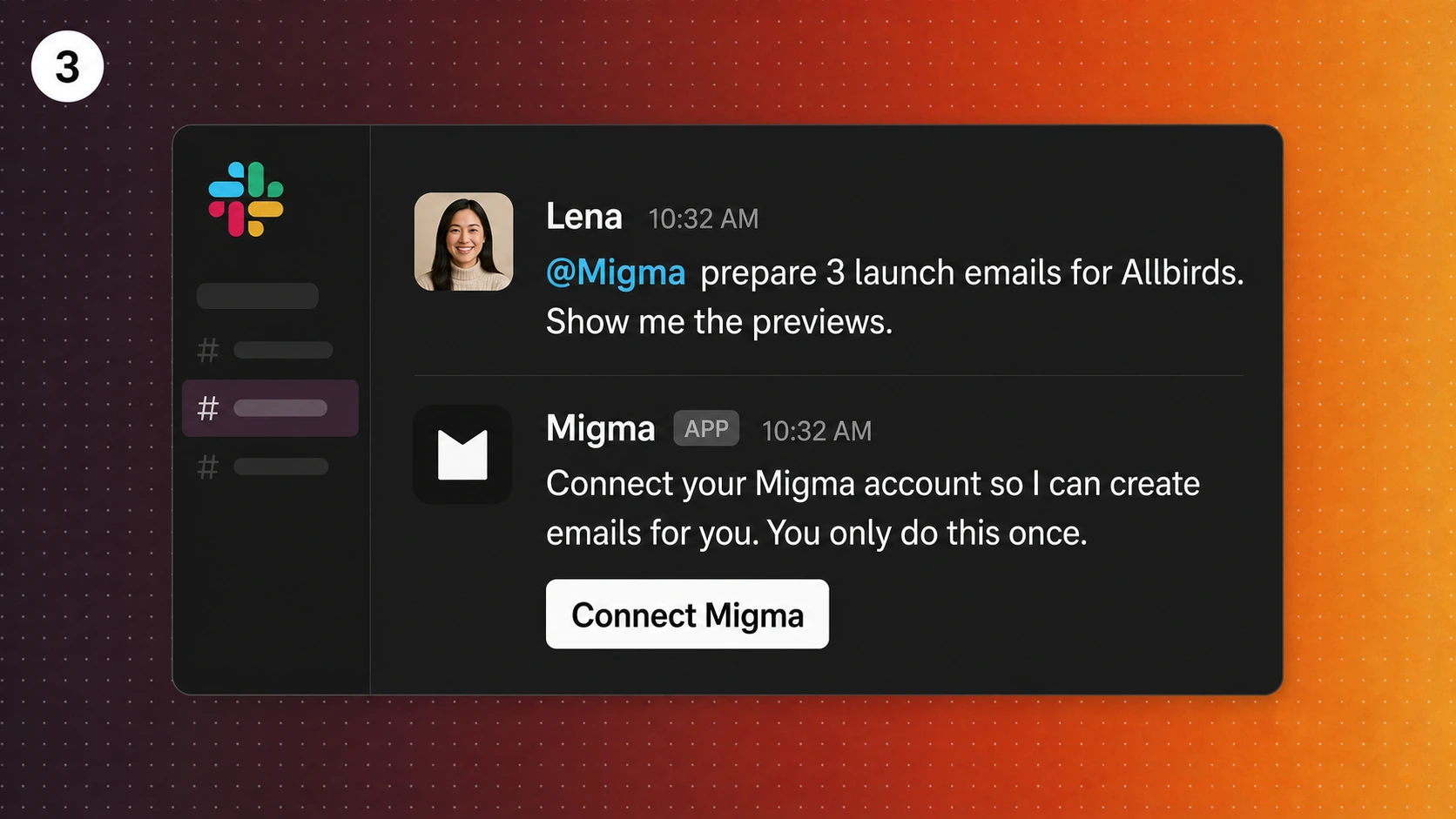
Each teammate links their own Migma account. Normal brand access, plan limits, and credits apply to that person.
3. Return to Slack and send the request again
The message that opened account linking does not resume automatically. Return to Slack and repeat the request after the connection succeeds.
Keep the exact @Migma mention. Migma handles messages intended for the assistant, not unrelated channel conversation.
Write a brief the assistant can use
“Make a launch email” leaves too many decisions open. Give the thread a clear contract:
@Migma create two launch emails for the Acme brand. Audience: current trial users who have not invited a teammate. Goal: help them start one shared project. Use only the approved facts and URLs in this thread. Email one should explain the collaboration benefit. Email two should answer the security objection. Return preview images and an Open in Migma link. Do not send, schedule, or export anything.
This prompt names audience, goal, source facts, sequence job, review output, and stop condition. It gives the assistant enough room to design while keeping risky actions outside the request.
If the team has not resolved a material fact, ask for questions before generation:
Before creating anything, list missing audience facts, unsupported claims, unclear links, and approval risks. Ask only questions that would change the emails.
Review drafts in the same thread
Migma replies in a Slack thread with the result. Keep follow-ups there so “make email two shorter” points to the correct draft set.
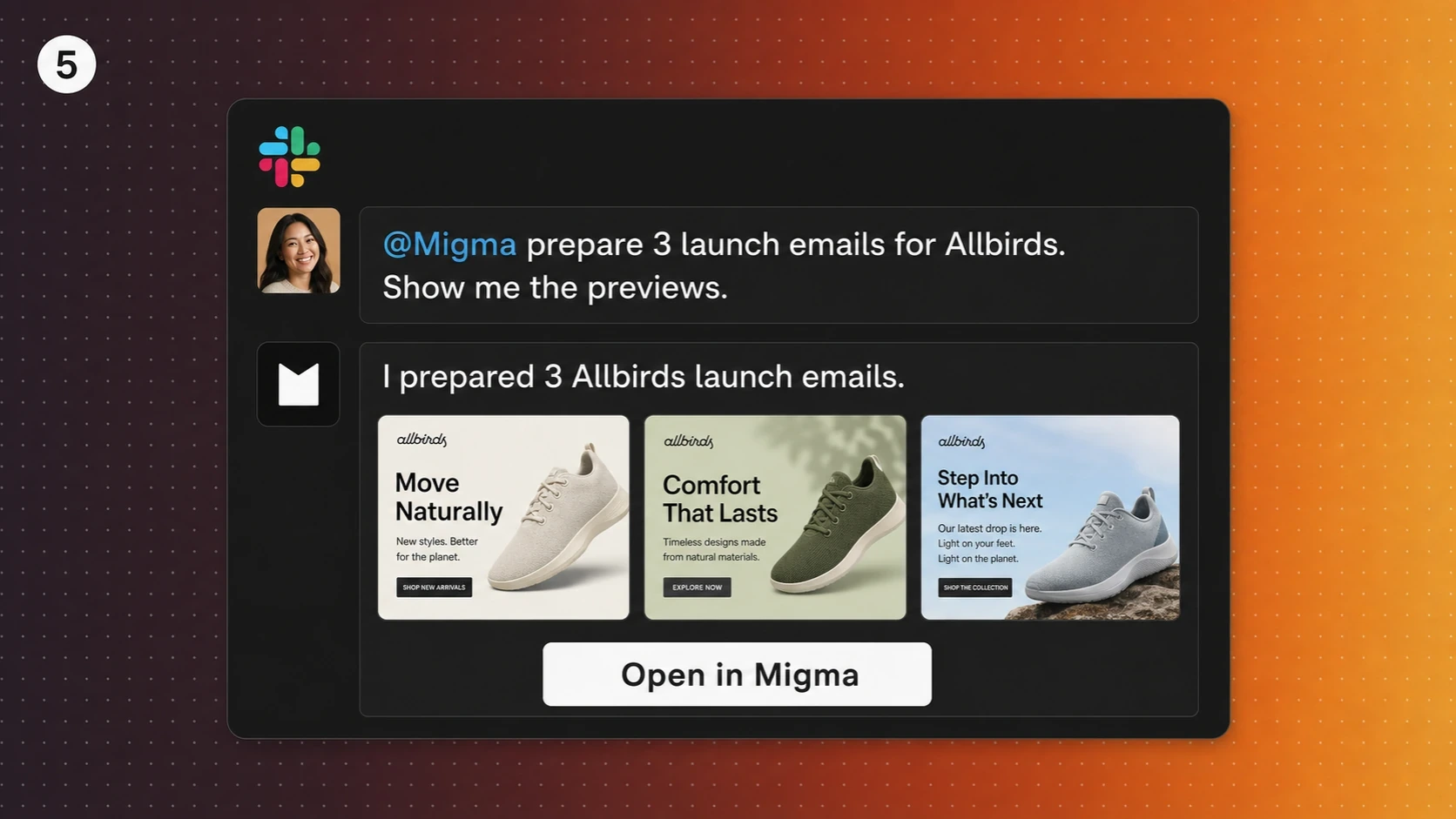
Useful feedback names what must change and what must stay fixed:
Keep approved facts, offer, and links unchanged. In email one, cut the opening to two sentences and move the proof above the CTA. In email two, make security the main objection and remove repeated feature copy. Return fresh previews. Do not send.
Avoid stacking unrelated redesign requests into one late review. First settle message and sequence. Then check layout, imagery, CTA placement, and mobile hierarchy.
Use screenshots without cloning them
Slack can carry a screenshot reference into the draft workflow. Tell Migma which qualities matter:
@Migma use this screenshot as layout inspiration for Acme. Keep the image-led hero and section rhythm. Replace its branding, copy, colors, and claims with Acme's saved brand context. Do not copy the source logo or text.
The screenshot is direction, not a template license. Review source rights and remove any third-party marks or claims that do not belong to your brand.
Finish in Migma
Chat is useful for briefing and revision. It is a poor final-send screen.
Open the returned canvas link and review:
- Full copy and approved claims
- CTA and footer links
- Personalization fallbacks
- Image rights and alt text
- Mobile hierarchy and dark-mode contrast
- Sender identity and sending domain
- Opted-in audience and unsubscribe behavior
- Test result before any live campaign
The Slack connection does not include email-send access. Export, sender selection, recipient selection, scheduling, and live approval happen in Migma.
When Slack is the right surface
Choose Slack when a team already discusses campaigns in channels and needs shared review context. It works well for launches, onboarding sequences, event follow-ups, and content-led newsletters where several people shape the brief.
Use Migma directly when the work is mostly visual, one person owns the campaign, or reviewers need precise canvas comments. Use Claude or ChatGPT when one person wants a longer research and reasoning session before email production starts.
Choose your chat surface
- AI email marketing from Slack: team briefs, channel context, and threaded feedback.
- AI email marketing from Telegram: mobile-first drafting and quick founder review.
- AI email marketing from Claude: research-heavy briefs and Claude Design work.
- AI email marketing from ChatGPT: prompt-led campaign planning and custom-app workflows.
Start with Migma's Slack setup guide, connect one account, and test one draft-only request before inviting a full campaign review.
Frequently Asked Questions
Can I create marketing emails from Slack?
Migma for Slack can prepare and edit branded email drafts in beta. Mention @Migma, review the previews in a thread, then open the result in Migma for final checks and handoff.
Can Migma send a campaign directly from Slack?
No. The Slack connection does not include email-send access. Final export, sender and recipient selection, scheduling, and live sending stay in Migma.
Why does Migma not reply in Slack?
Confirm Migma is installed in the workspace, is present in the channel, your message includes the exact @Migma mention, and your personal Migma account is linked. After linking, return to Slack and send the request again.
Does every Slack teammate share one Migma account?
No. The app is installed once per workspace, but each teammate links their own Migma account. The assistant uses that person's brands, permissions, plan limits, and credits.
Can I use a screenshot as email inspiration?
Yes. Attach the screenshot and describe which layout qualities should carry over. Ask Migma to use your own brand, copy, links, and approved claims rather than cloning the source.