A campaign idea often arrives when the full email stack is out of reach. A founder sees a customer question on a phone, a marketer notices a launch angle between meetings, or a teammate needs to turn one image into a draft before the idea disappears.
AI email marketing from Telegram should make that first production step possible from mobile. With MigmaAI, you can message the verified bot, prepare branded email drafts, inspect preview images, refine one email in the same chat, and open the result in Migma for final review.
Migma for Telegram is in beta. Use only @MigmaAIBot, with profile name MigmaAI. The bot prepares drafts and previews; final export and sending stay in Migma.
Short answer
Telegram is useful when speed and mobile access matter more than a large editing surface.
| Step | What happens |
|---|---|
| Connect | Link one Telegram identity to one Migma account |
| Ask | Send a direct message, or mention `@MigmaAIBot` in a group |
| Draft | Migma prepares branded email drafts using your permitted brands |
| Review | Inspect previews and request one focused change at a time |
| Finish | Open the selected email in Migma for QA, audience, sender, and approval |
Inbox-forwarding bots solve another job. This workflow creates marketing email drafts from a Telegram conversation.
Why mobile email ideas usually stall
Mobile AI tools make it easy to produce text. They do not automatically produce a usable email artifact.
A draft still needs:
- Saved brand colors, fonts, logos, and voice
- Responsive email structure
- Clear CTA and link review
- Personalization fallbacks
- Email-client checks
- Sender and consent review
- A controlled campaign or export handoff
Without that production layer, “I drafted it on my phone” often means “I created more copy to rebuild later.” Telegram becomes useful when the conversation creates work that already exists inside Migma.
I would test the workflow with one real draft before relying on it during a launch. Check the linked brand, preview, canvas result, and handoff from the same phone you plan to use.
Connect Migma to Telegram
Follow the current Telegram setup guide. The exact bot identity matters because similar handles can point to unrelated accounts.
1. Open the verified bot
Go to t.me/MigmaAIBot. Confirm the profile name is MigmaAI, press Start, and send a message.
If your account is not linked, the bot returns Connect Migma.
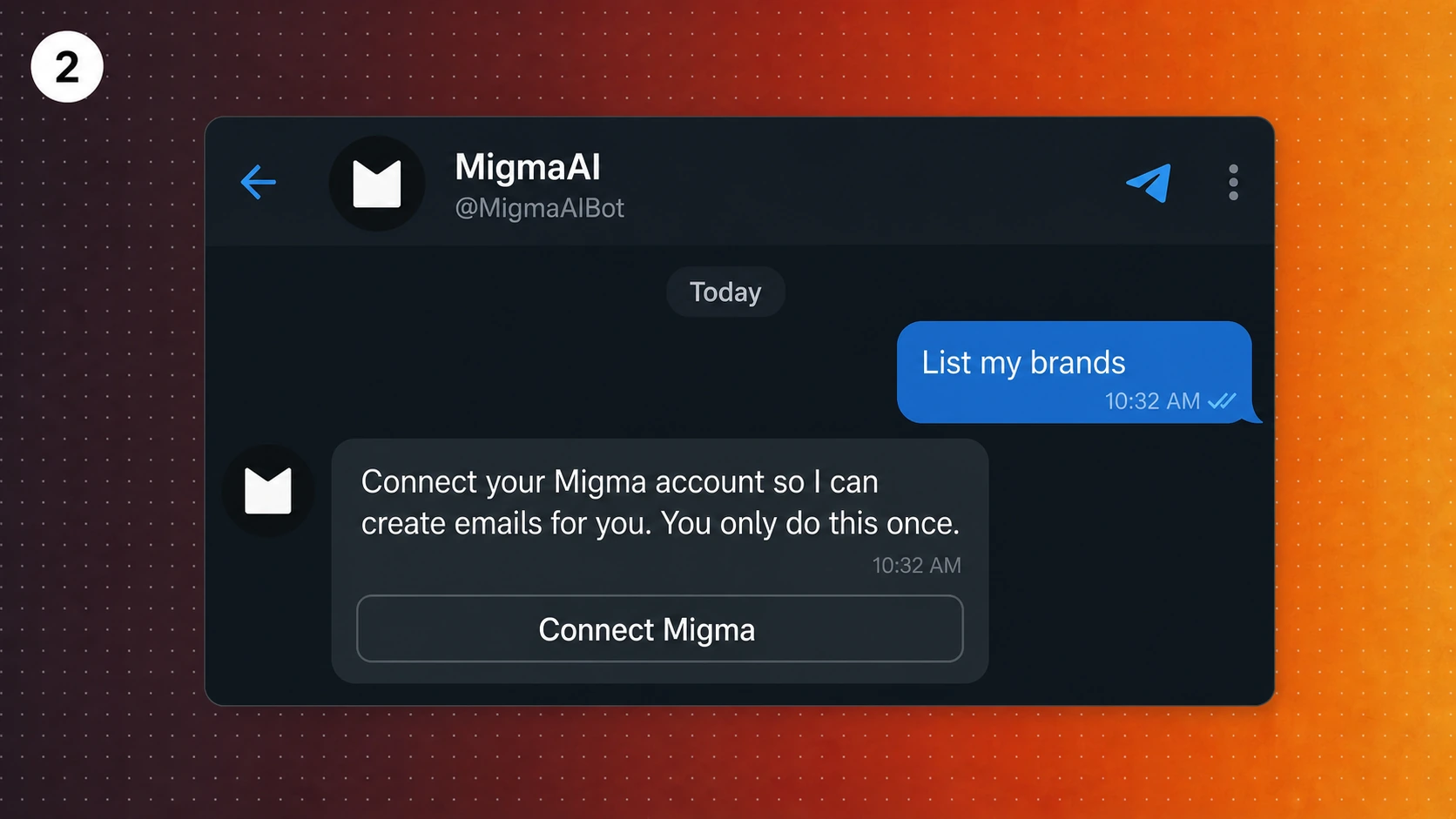
2. Link the intended Migma account
Open the connection action, sign in to Migma if needed, then choose Log in with Telegram. You can also start from migma.ai/telegram/connect.
One Telegram account links to one Migma account. Never paste a Migma API key into Telegram.
3. Return to Telegram and send a new message
Linking does not replay the message that opened the connection flow. Return to Telegram and send a new request after Migma confirms the link.
Start read-only:
List my brands. Do not create, export, or send anything.
Once the bot returns the expected brands, move to one draft-only request.
Create a useful draft from your phone
Mobile prompts need enough structure to prevent a generic email, but they do not need to be long.
Create two onboarding emails for the Acme brand. Audience: new customers who finished setup but have not invited a teammate. Email one should show the first collaboration benefit. Email two should answer the security concern. Use saved brand facts and keep product claims exact. Return preview images and an Open in Migma link. Do not send, schedule, or export anything.
If you are reacting to a customer message, remove personal information before using it as campaign input. Convert the observation into an audience pattern:
Customers keep asking whether teammates need paid seats before they can review a project. Use that objection in email two. Do not quote the customer or invent pricing details.
Review previews in Telegram
MigmaAI can return preview images and an Open in Migma action. The preview lets you judge whether the hierarchy works before opening a full editor.
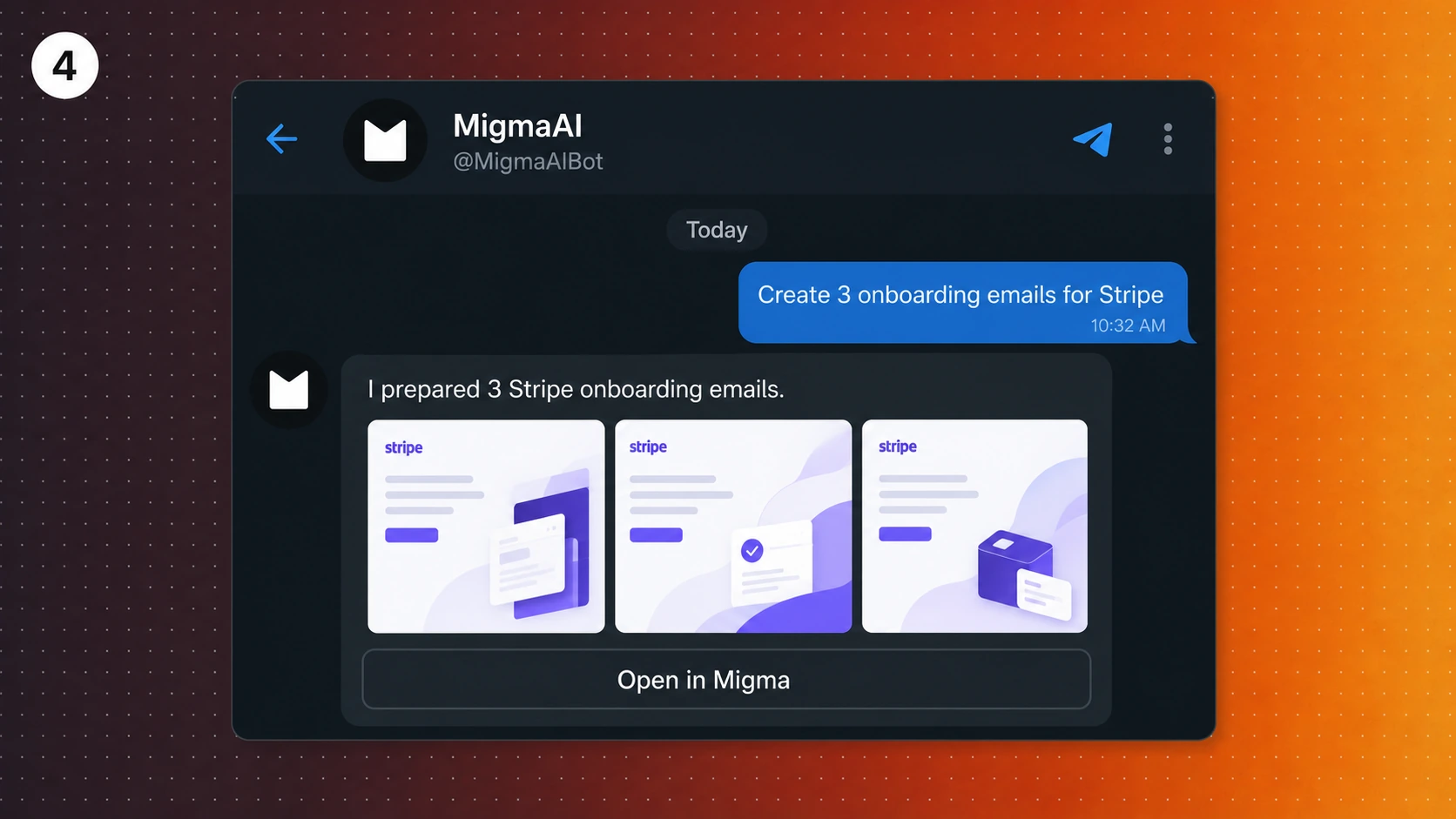
Use focused corrections:
Keep email one unchanged. In email two, shorten the opening, make the security answer more direct, and move the CTA below the proof. Keep every approved fact and URL unchanged. Return the new preview. Do not send.
The bot keeps recent thread context so a follow-up such as “make email two more formal” can refer to the current set. If the conversation has moved to another campaign, name the brand and email again.
Use an image as a design reference
Attach one image and explain what should carry over:
Make an email for Acme using this image as visual direction. Keep the image-led hero and open spacing. Use Acme colors, fonts, voice, approved claims, and links. Do not copy third-party branding or text.
An image can guide composition. It cannot prove you have rights to reuse logos, photography, copy, or claims. Review source ownership before any campaign leaves draft state.
Direct messages and groups
Direct messages are the cleanest starting point. Send requests to @MigmaAIBot.
For a group:
- Add
@MigmaAIBot. - Mention
@MigmaAIBotin every request. - Keep campaign feedback near the bot reply.
- Test the same request in a direct message if the group gets no reply.
Group messages without the exact bot mention are ignored. The bot does not read unrelated Telegram chats or contacts.
Finish in Migma before sending
A phone preview helps with fast judgment. Final approval needs more context.
Open the email in Migma and check:
- Copy, offer, and approved product claims
- CTA, legal, and footer links
- Image rights and alt text
- Mobile hierarchy and dark-mode contrast
- Personalization values and fallbacks
- Opted-in audience and unsubscribe behavior
- Sending domain, From address, and reply-to address
- Test delivery before a live send
Review, download, export, and send from Migma. The Telegram bot is not a shortcut around audience consent or sender approval.
When Telegram is the right surface
Choose Telegram when one person needs to capture an idea, check a preview, or request a focused edit from mobile. It fits founders, small teams, and campaign owners who already use Telegram as a daily work channel.
Choose Slack when a larger team needs threaded review. Choose Claude for research-heavy planning or Claude Design input. Choose ChatGPT for a prompt-led workflow inside an approved app or custom connector.
Choose your chat surface
- AI email marketing from Slack: team briefs, channel context, and threaded feedback.
- AI email marketing from Telegram: mobile-first drafting and quick founder review.
- AI email marketing from Claude: research-heavy briefs and Claude Design work.
- AI email marketing from ChatGPT: prompt-led campaign planning and custom-app workflows.
Start with Migma's Telegram setup guide, verify @MigmaAIBot, and test one draft-only request before trusting the workflow for a campaign deadline.
Frequently Asked Questions
Can I create marketing emails from Telegram?
MigmaAI can prepare and edit branded email drafts from Telegram in beta. Message @MigmaAIBot, review preview images, then open the result in Migma for final checks and handoff.
What is the official Migma Telegram bot?
Use @MigmaAIBot. The profile name should be MigmaAI. Avoid copied or similar handles, and use Migma's connection page when linking your account.
Why did the bot not continue after I linked my account?
The message that opened the connection flow is not replayed. Return to Telegram and send a new message after Migma confirms the link.
Can Migma send a campaign directly from Telegram?
No. Review, export, sender and recipient selection, scheduling, and live sending stay in Migma.
Why does the bot ignore my Telegram group message?
Group requests must mention @MigmaAIBot exactly. Add the bot to the group, include the mention in each request, and test the same request in a direct message if needed.